Microsoft Teams Rooms User Guide
Start a Teams meeting, share your screen and control the equipment in the meeting room. Select a topic below and follow the steps, or watch the instructional video.
What would you like to do?
1. Join a scheduled meeting
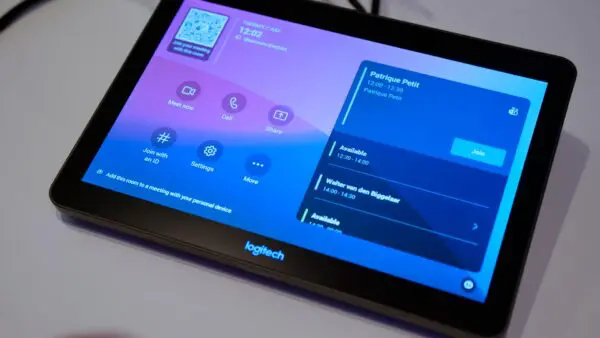
Is your meeting displayed on the room’s touchscreen? You can join it directly from there.
- Find your meeting on the touchscreen.
- Tap Join.
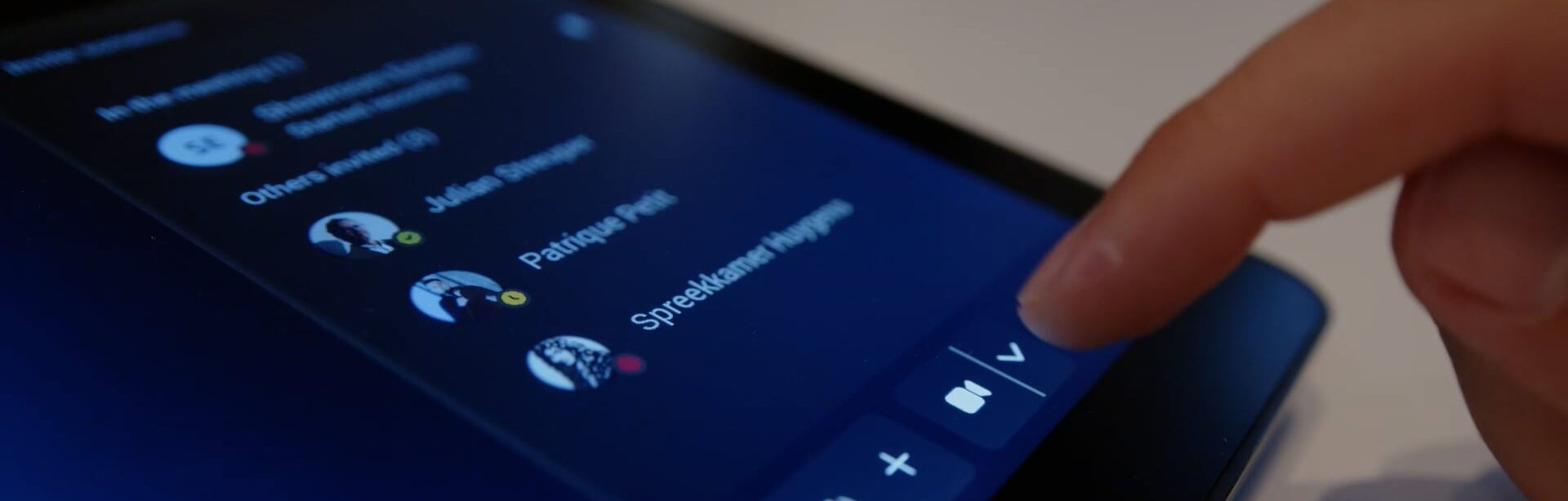
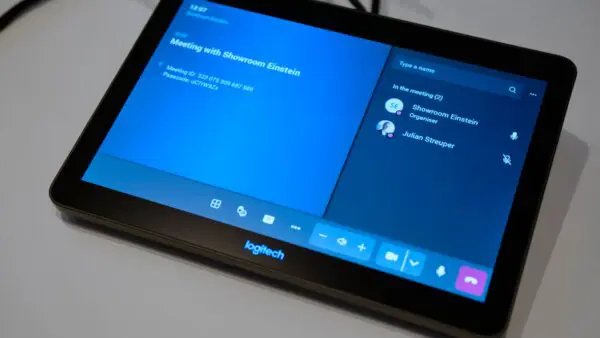
- Use the buttons on the touchscreen to control the microphone, camera and volume.
You will join using the meeting room’s camera, microphones and speakers.
Avoid echo: joining on your laptop as well? Turn off both your laptop’s microphone and speakers. Use the meeting room’s audio.
Watch the video: joining a scheduled meeting
2. Meeting not showing? Join with an ID
If your meeting is not displayed on the touchscreen, use the meeting ID and passcode from the invitation, provided the room supports this option.
- Open the meeting invitation on your laptop or phone.
- Find the meeting ID and passcode.
- Tap Join with an ID on the touchscreen.
- Enter the required details and tap Join.
Joining a Zoom or Webex meeting? The available options depend on how the room is set up. Ask your IT service desk or room administrator which joining methods are available.
Watch the video: joining with a meeting ID
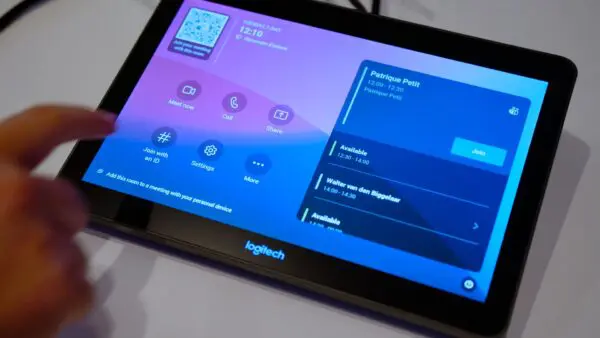
3. Join using a QR code
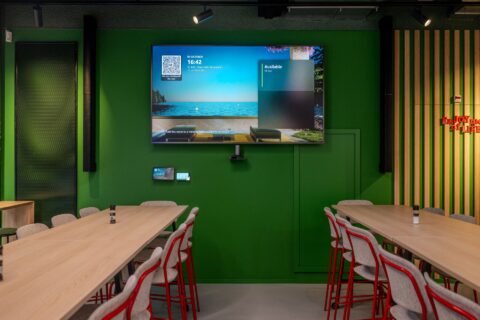
Is there a QR code on the touchscreen? You can use it to connect to the room through the Teams app on your phone.
- Scan the QR code with your phone.
- Open the Microsoft Teams app when prompted.
- Follow the instructions in the app to select a meeting and join using the room.
- Confirm the connection if prompted.
Once the room has been added to the meeting, you will use the room’s camera, microphones and speakers.
Watch the video: joining using a QR code
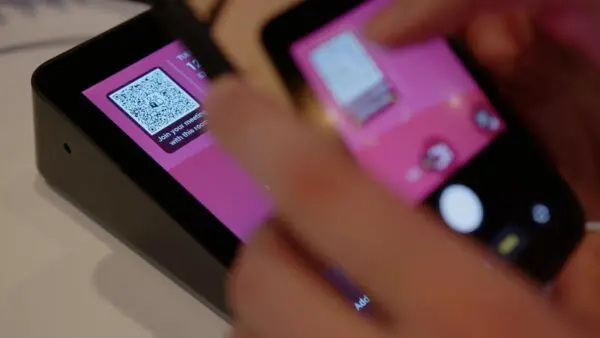
4. Add a meeting room to an existing meeting
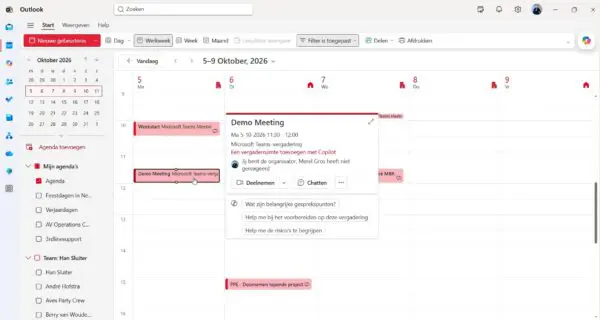
Are you the organiser of the Teams call and would like to use the equipment in the meeting room? Simply add the meeting room to the existing appointment in Outlook.
- Open the meeting in Outlook.
- Click Edit and add the desired meeting room as either the location or an attendee.
- Send the updated invitation.
- Once the meeting room accepts the invitation, the meeting will appear on the touch panel.
Avoid echo: turn off your laptop’s microphone and speakers as soon as the room joins. You can continue using your laptop to share your screen, for example.
Watch the video: adding a room to an existing meeting
5. Start an instant meeting
Want to meet without scheduling a meeting in advance? Start one from the touchscreen.
- Tap Meet now.
- Search for the people you would like to invite.
- Select the people you want to include.
- Follow the on-screen instructions to start the meeting and send the invitations.
Watch the video: starting an instant meeting and inviting participants
6. Share your screen
There are several ways to share your screen. Choose a method that is available in your meeting room.
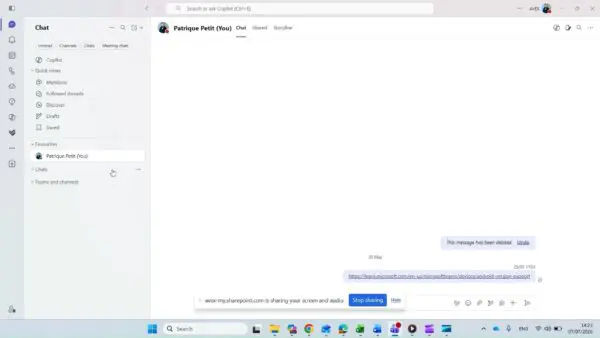
Share through Teams on your laptop
Use this option to show a screen or window during a Teams meeting.
- On your laptop, join the same Teams meeting as the meeting room.
- Turn off your laptop’s microphone and speakers to avoid echo.
- Click Share in Teams.
- Select the screen or window you want to show.
- Click Stop sharing when you have finished.
Tip: share only the window you need if you want to keep other information on your laptop out of view.
Share using a cable
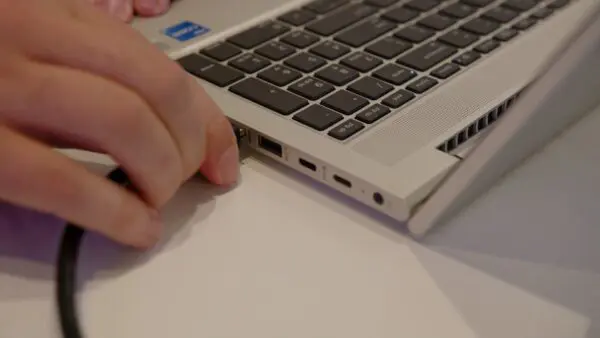
- Connect the presentation or connection cable provided in the room to your laptop, for example HDMI or USB-C.
- If your screen does not appear automatically, tap Share on the touchscreen, if this option is available.
- Check that the correct content is visible on the room’s screen.
Please note: not every USB-C port supports video output. Use the cable provided in the room for presentations.
Watch the video: sharing your screen using a cable
Present wirelessly
Does the room support wireless presenting through Teams? Use the available casting feature.
- Open Microsoft Teams on a device that supports this feature.
- Find the option to cast to a room.
- Select the correct meeting room.
- Follow the instructions to share your content.
Cannot find the casting feature? Share through Teams in the meeting or use the presentation cable provided.
Watch the video: presenting wirelessly
Meeting with remote participants? Check that they can see the shared content too. Content displayed on the room’s screen is not always shared in the online meeting.
7. Control the microphone, camera and volume
During the meeting, use the touchscreen to control the room’s equipment.
- Turn the microphone on or off: tap the microphone button. Check the screen to see whether the microphone is on or off.
- Turn the camera on or off: tap the camera button to turn your video on or off.
- Adjust the volume: use the volume control to make other participants louder or quieter.
Please note: the volume control adjusts how loudly you hear others. It does not adjust the volume of your own microphone.
Watch the video: controlling the microphone, camera and volume
8. Add or remove participants
Add a participant
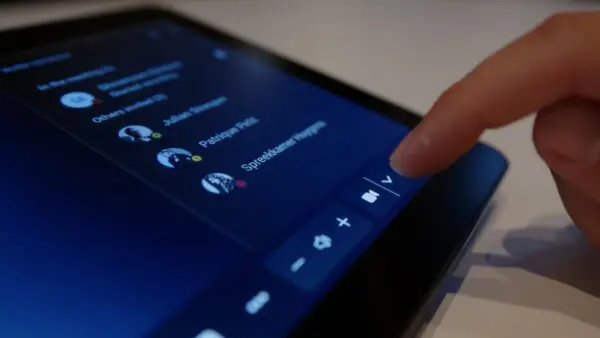
- Open the participant list on the touchscreen.
- Search for the person you want to add.
- Select the person and send the invitation.
The person will receive an invitation to join.
Remove a participant
Whether you can remove someone depends on your role and the meeting settings.
- Open the participant list.
- Select the relevant participant.
- Choose Remove from meeting, if this option is available.
If you cannot see this option, ask the organiser to remove the participant.
Watch the video: inviting participants
9. Change the screen layout
Want a larger view of the participants or the presentation? During the meeting, open the view options on the touchscreen and choose an available layout.
The options you see depend on the room, the Teams version and the meeting. Possible views include:
- Gallery: displays participants alongside each other in a grid.
- Large gallery: displays more participants at once, if this option is available.
- Front row: arranges participants and meeting information across the screen for hybrid meetings.
- Content focus: gives the shared presentation more space.
- Together mode: displays participants in a shared virtual environment.
Watch the video: changing the screen layout
10. Leave the meeting
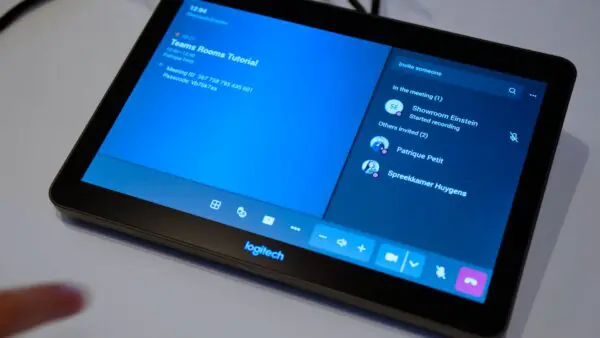
- Tap Leave on the touchscreen.
- Confirm your choice if prompted.
- Stop any screen sharing on your laptop and disconnect the presentation cable.
- If you have also joined on your laptop or phone, leave the meeting on those devices too when you have finished.
The meeting room will leave the online meeting. Other participants can remain in the meeting.
Watch the video: leaving the meeting
11. Having trouble? Get practical help
My meeting is not displayed on the touchscreen
Check that the correct meeting room has been invited and that the booking has been accepted. Want to join straight away? See the instructions for joining with a meeting ID.
Other participants cannot hear me
Check the touchscreen to make sure the room’s microphone is on. Then ask a remote participant whether they can hear you. If the problem persists, contact your IT service desk or room administrator.
I cannot hear the other participants
Increase the volume using the touchscreen. Ask the other participants to check that their microphones are on as well.
I can hear an echo
Check whether a laptop or phone in the room is also playing or picking up meeting audio. Turn off both the microphone and speakers on those devices and use the meeting room’s audio.
My shared screen is not appearing
Check that the presentation cable is properly connected and that you have selected the correct sharing option. Sharing through Teams? Check that your laptop and the room are in the same meeting and that you are sharing the correct screen or window.
See the different ways to share your screen.
I cannot see a button or feature mentioned in this guide
Not every room has the same features. Use another method described in this guide if it is available, or ask your IT service desk or room administrator which options your room supports.
Need more help?
Contact your internal IT service desk or room administrator. Provide the name of the meeting room and describe what you are trying to do and what is displayed on the screen.

Patrique Petit
Microsoft Office 365 Specialist

Publication date
21 September 2026
Updated date
21 September 2026
Sector
All Sectors
Solution
Boardrooms, Meeting Rooms
Keep discovering